User guide
Stay ahead of what matters.
Learn how to organize everyday tasks, recurring responsibilities, follow-ups, and place-based alerts across iPhone and iPad.

Start here
Getting started
A title is all a reminder needs. Notifications and iCloud are optional, but unlock alerts and cross-device sync.
- 1
Open Trovu Reminders and allow notifications when iOS asks. You can change this later in Settings.
- 2
Tap New Reminder, enter a title, and optionally add a date, list, repeat schedule, attachment, or alert.
- 3
Tap Save Reminder. The item appears in the appropriate home section and its selected list.
- 4
Open the menu for Calendar, Waiting On, Completed, Recently Deleted, custom lists, Print, and Settings.
At a glance
Home and navigation
Home puts Next 7 Days first, followed by sections such as Overdue, Snoozed, Waiting On, Future, and No Due Date.


Capture the details
Create a reminder
Use only the options that help. Everything except the title is optional.
Due and repeat
Repeat by minutes, hours, days, weeks, months, or years. Advance the next occurrence from its scheduled date or completion date.
Templates
Start quickly with home, bill, vehicle, renewal, medication, birthday, and appointment templates.
Per-item alerts
Choose an alert profile, early warnings, and a sound that overrides the app default.


Make it yours
Organize with lists
Inbox is always available. Additional lists can have their own color, icon, and behavior.
Standard
A manual list for projects, people, routines, or any grouping you choose.
Groceries
Automatically groups recognizable grocery titles into practical categories.
Smart List
Updates automatically for All, Today, Next 7 Days, Overdue, or No Due Date.
Touch and hold a list to edit, move, or delete it. Reminders from a deleted list return to Inbox.
See the month
Calendar view
Open Calendar from the menu to see reminder titles overlaid on their dates. Tap a day or item to review details below the calendar.

Keep moving
Complete, snooze, edit, and delete
Done
Tap the round checkbox or swipe left to right. An Undo banner appears briefly.
Snooze
Swipe right to left and snooze for 10 minutes, 1 hour, or until tomorrow.
Edit
Tap the reminder row or use the trailing Edit swipe action.
Delete
Use the trailing Delete action. The reminder remains recoverable for 30 days.
Recently Deleted
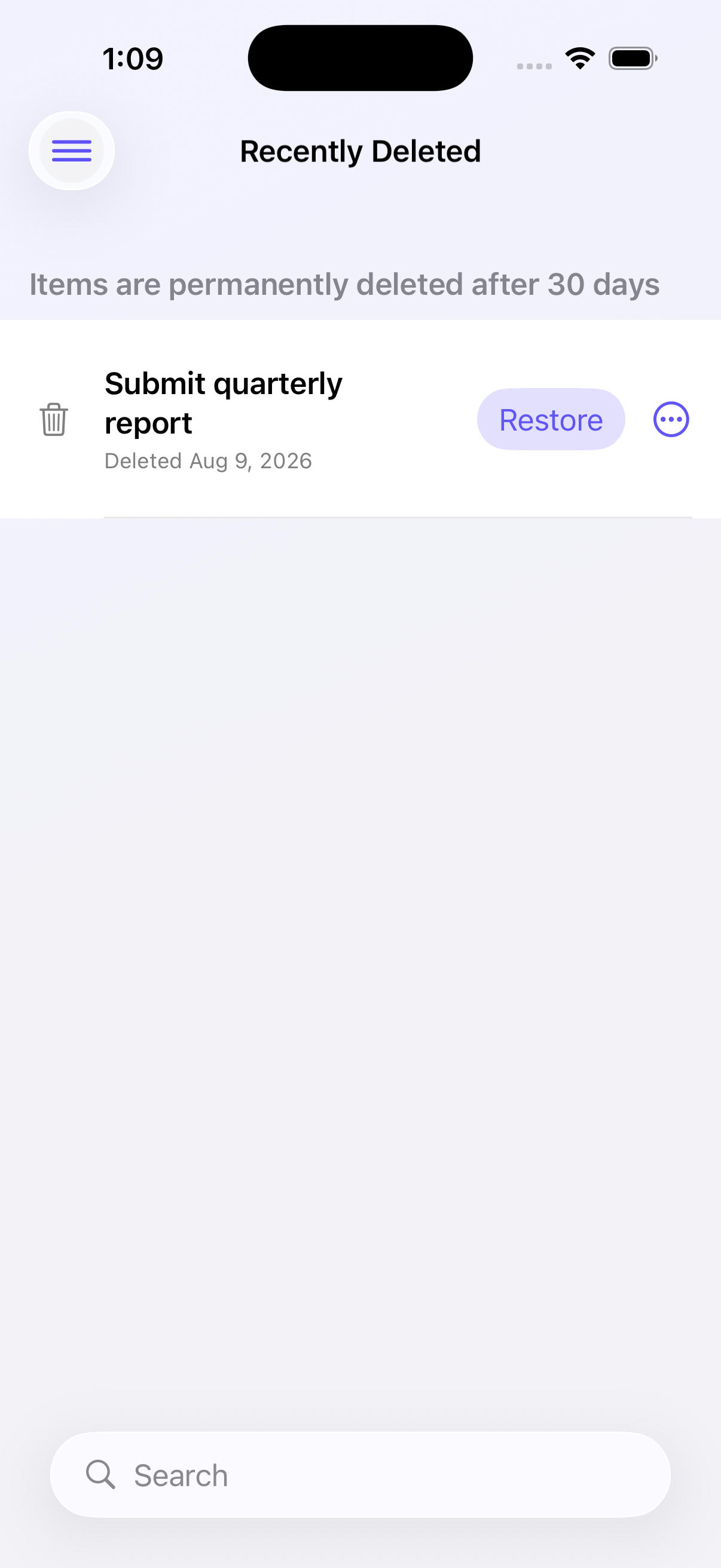
Open Recently Deleted and tap Restore to return an item with its saved details. Use the ellipsis menu to delete it permanently.
Hard to miss
Alerts and sounds
Trovu schedules notifications directly on the device. No Trovu notification server or account is required.
Follow-up profiles
Persistent profiles repeat on the configured cadence until you complete or snooze the item, within iOS limits.
Early alerts
Add advance warnings one week, one day, and one hour before a due time.
Sounds
Use the default or choose a sound per reminder. Preview it before saving.
Quick actions
Touch and hold a delivered notification to reveal Done and snooze actions.
Context matters
Waiting On and location alerts
Waiting On
Use this when your next action depends on another person. Enter the person or response and a follow-up date. The item stays in Waiting On until you clear that state or complete it.
Trovu does not read Messages or email and cannot automatically detect a reply.
Location alert
Choose arrival or departure, enter a place or address, set a radius, and tap Find Location. After you allow location access, iOS monitors the saved region and can alert you without the app remaining open.
Add context
Photos, documents, and scanned text
Open the attachment menu while creating or editing a reminder.
Scan Text
Recognize printed text with the camera and add it to the reminder’s notes.
Scan Document
Capture one or more pages as a document attached to the reminder.
Choose Photo
Select an existing image from the Photos library.
Take Photo
Capture a new image and attach it directly.
Beyond the app
Widgets and Siri Shortcuts
Home and Lock Screen widgets
Touch and hold the Home Screen or Lock Screen, choose Edit, and select Trovu Reminders. Home widgets show upcoming items. Lock Screen options show compact Next 7 Days, Due Today, and Overdue counts, plus a rectangular summary.
Siri and Shortcuts
Open Shortcuts → Apps → Trovu Reminders to create, complete, snooze, or move reminders and retrieve Today or Future reminders. These actions can be combined with other apps in personal automations.
Your data
iCloud sync, export, and print
iCloud
Reminders and lists sync privately through the iCloud account signed into the device.
Manual refresh
Use Refresh Reminders if another device’s change has not appeared. Both devices must use the same Apple Account.
Export
Open Settings and create a portable copy of reminder data for sharing or safekeeping.
Generate a formatted to-do list PDF with checkboxes, including checked boxes for completed items.
Personalize it
Settings
- Appearance: follow the system, always use Light, or always use Dark.
- Hide completed reminders: enabled by default on Home; completed items remain in their dedicated view.
- Notifications: globally enable alerts and review the current iOS authorization status.
- Cadence and quiet hours: choose follow-up intervals and hours when repeated alerts should pause.
- Default sound: select and preview the sound used by new reminders.

Quick fixes
Troubleshooting
No notification
Check Enable Notifications in the app and iOS Settings → Notifications → Trovu Reminders. The reminder must also have Notify Me enabled.
No sound
Check Play a Sound, device volume, Silent Mode, and Focus. Preview the selected sound in Settings.
Sync delay
Open the source device, then use Refresh Reminders on the destination. Verify both devices use the same Apple Account.
Stale widget
Open Trovu Reminders once to refresh widget data. If needed, remove and add the widget again.
Location alert
Check permission, confirm the place resolved, and use a large enough radius for reliable arrival or departure detection.
Shortcuts missing
Open Trovu Reminders once after installation, then reopen Shortcuts and look under Apps.
Need a hand?
Include your device model, iOS version, and what you expected to happen. Avoid including private reminder text when possible.