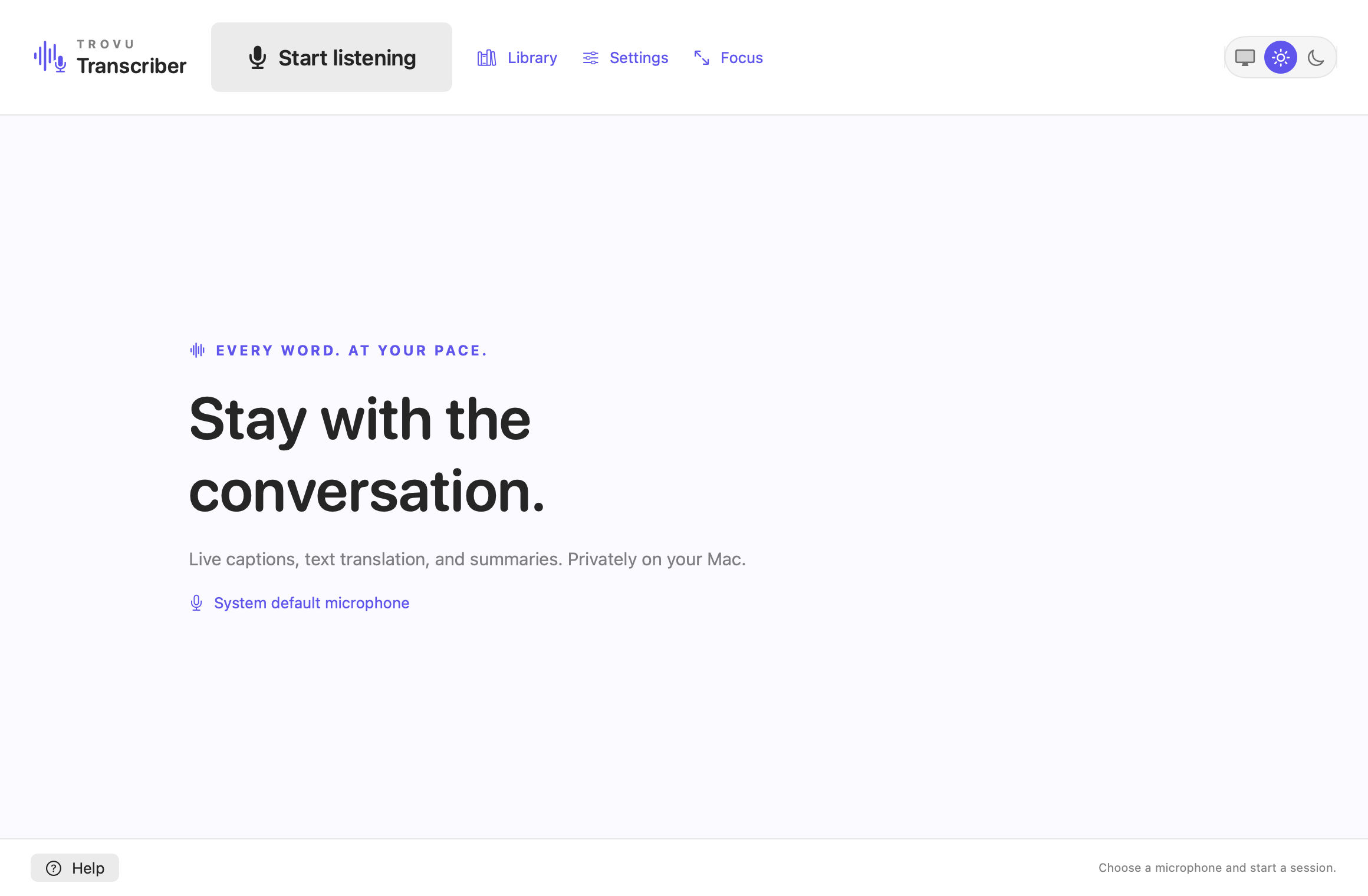
Stay with the conversation.
Trovu Transcriber shows microphone speech as readable text on your Mac. This guide is bundled with the app and works offline.
- Open Settings. Choose a microphone and spoken language. Prepare translation languages if needed.
- Choose whether to keep text and audio automatically. Optional speaker labels require a separate model download.
- Click Start listening and allow microphone access when macOS asks. The app enters its immersive reading view.
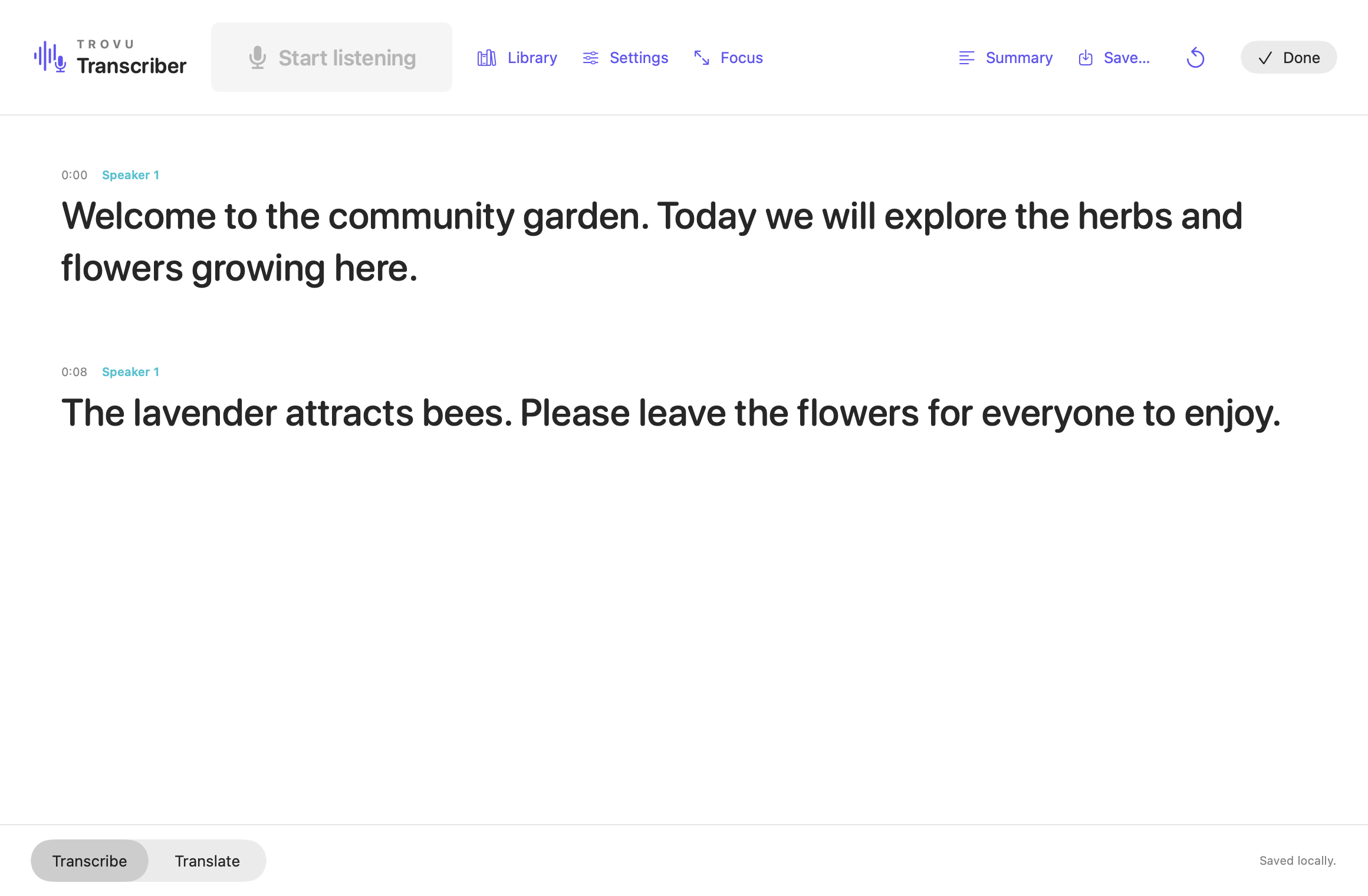
- Use Transcribe for the original words or Translate for translated captions.
- Click Stop to finish the last words. Review, save or export, then choose Done to return home.
Recognition can make mistakes. Check important names, numbers and statements against the recording. This app is a reading aid; it does not provide medical assessment or treatment.
Use your browser’s Find command or the topic links above to search this guide.
Choose a microphone
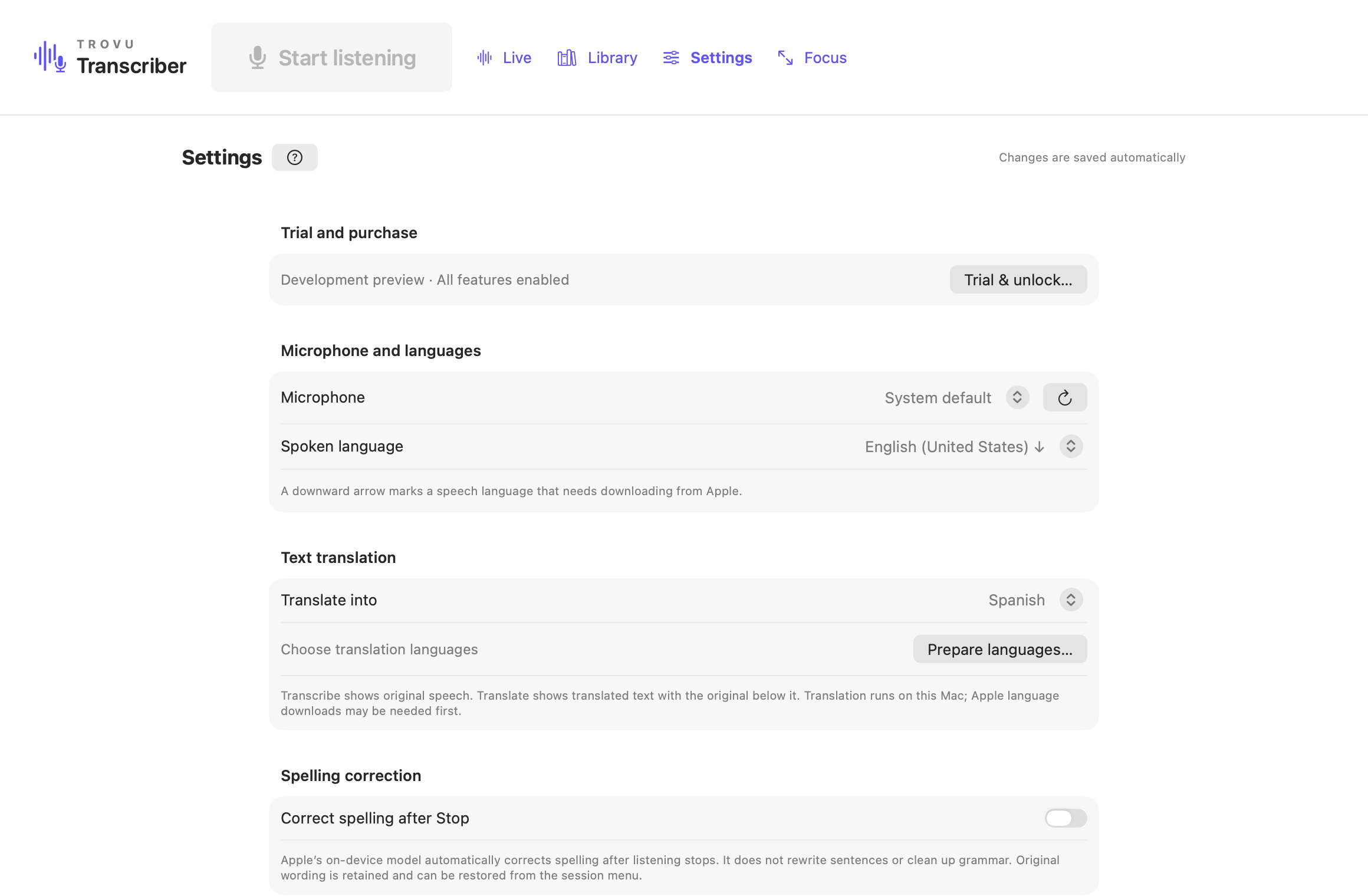
In Settings, select System default, your Mac’s microphone, or another input exposed by macOS. An iPhone microphone may appear when macOS makes it available; Trovu does not pair or stream from the phone itself.
Your selected device is remembered. If it is missing, reconnect it or choose another input. The app does not silently replace a specifically selected microphone. If an input fails during capture, the session is stopped and earlier text and cached audio are preserved where available.
The live input meter shows sound reaching the app. After sustained silence, a no-sound indicator appears. Check the selected device, input volume and distance from the speaker.
Trovu captures microphone input. It does not include a system-audio recorder for other apps.
Transcribe and Translate
Transcribe shows speech in its original language. Translate shows translated text with the source beneath it. The language-pair control is beside the mode selector. Translation is text only; the app does not speak a live interpretation.
Apple speech and translation languages may need an initial download. A downward arrow marks a speech language that is not installed. Use Prepare languages before relying on offline translation. Recognition and translation support different language sets.
Change languages while listening
Choose Change languages for new speech in Settings or the language-pair menu. Prepare the next translation pair, then apply it. Capture continues while the next recognizer is prepared. Earlier passages retain their source language and saved translation.
Changing a review translation can add another saved translation without erasing the first. A historical passage may need a different language download. Exports explain missing translations rather than silently leaving passages out.
Reading and Focus
Recording starts with a text-focused view. Focus also opens the current transcript in that view. Settings can enter full screen automatically on recording and return to windowed mode on Stop; the app only automatically exits full screen if it entered it for that recording.
Scroll back while listening to review earlier text. Return to live follows new captions again. Latest text appears only when more text is below the visible area.
Reading settings control font, text size, line spacing, timestamps, incoming-text color and current-word emphasis. Theme can follow the system or use Light/Dark; accent color defaults to purple. Hiding timestamps does not delete timing information.
Optional speaker labels
Turn Identify multiple speakers on before starting and download the local speaker model. Turn it off for plain transcription and translation without diarization. The option applies to both text modes.
Labels such as Speaker 1 distinguish voices within a session; they do not identify a person by name. The model supports up to four speakers. Noise, overlap and brief speech can produce pending or unclear labels. Labels may arrive after the caption itself.
A translated passage can cover several speaker turns. Its labels describe the whole passage rather than claiming that translated words align with particular source words. Older saved sessions keep their speaker data when today’s Settings switch is off.
Replay and live rewind
The playback bar provides play/pause, a position slider, elapsed/total time and speeds from 0.75× to 2×. Text emphasis and scrolling follow the recording’s timeline at every speed. Click a timestamp to seek. If you scroll away during playback, Return to playback resumes following.
The scrub bar and speed menu stay hidden while following live speech. With temporary audio caching on, click an earlier timestamp or use a passage’s Play from here menu to rewind while capture continues. Playback controls then appear for that replay, and after Stop. Confirm that you are using headphones so replay does not feed back into the microphone. Output changes stop live replay and require confirmation again. Speaker playback is not guaranteed to be echo-free.
Live replay uses a stable snapshot of the recording. Reaching its end, or clicking Return to live, stops replay and returns to new captions. The microphone keeps listening until Stop.
Saving, Done and recovery
Settings → Defaults for new sessions controls automatic text/audio retention and temporary audio caching. This session can override those choices. At Stop, selected Keep text/Keep audio options save automatically.
With neither keep option selected, the session remains temporary. Save… can keep it in the Library or export a file. Done returns home; unsaved work gets a save/discard choice. The Trovu logo uses the same safe Home flow. During recording it returns to live captions instead of ending capture.
Temporary recordings and text checkpoints are cleared on Done/discard, a new saved session, or normal quit after retention decisions. After an unexpected shutdown, choose Recover an interrupted session on Home. Recovery restores the last checkpoint and available audio; the last few seconds of text may be missing.
Sessions open in another instance are excluded from recovery. Damaged files are kept for inspection; an available recording can sometimes be recovered without readable text metadata. Explicitly discarding recovery data is permanent and does not remove separately saved Library items.
Library and search
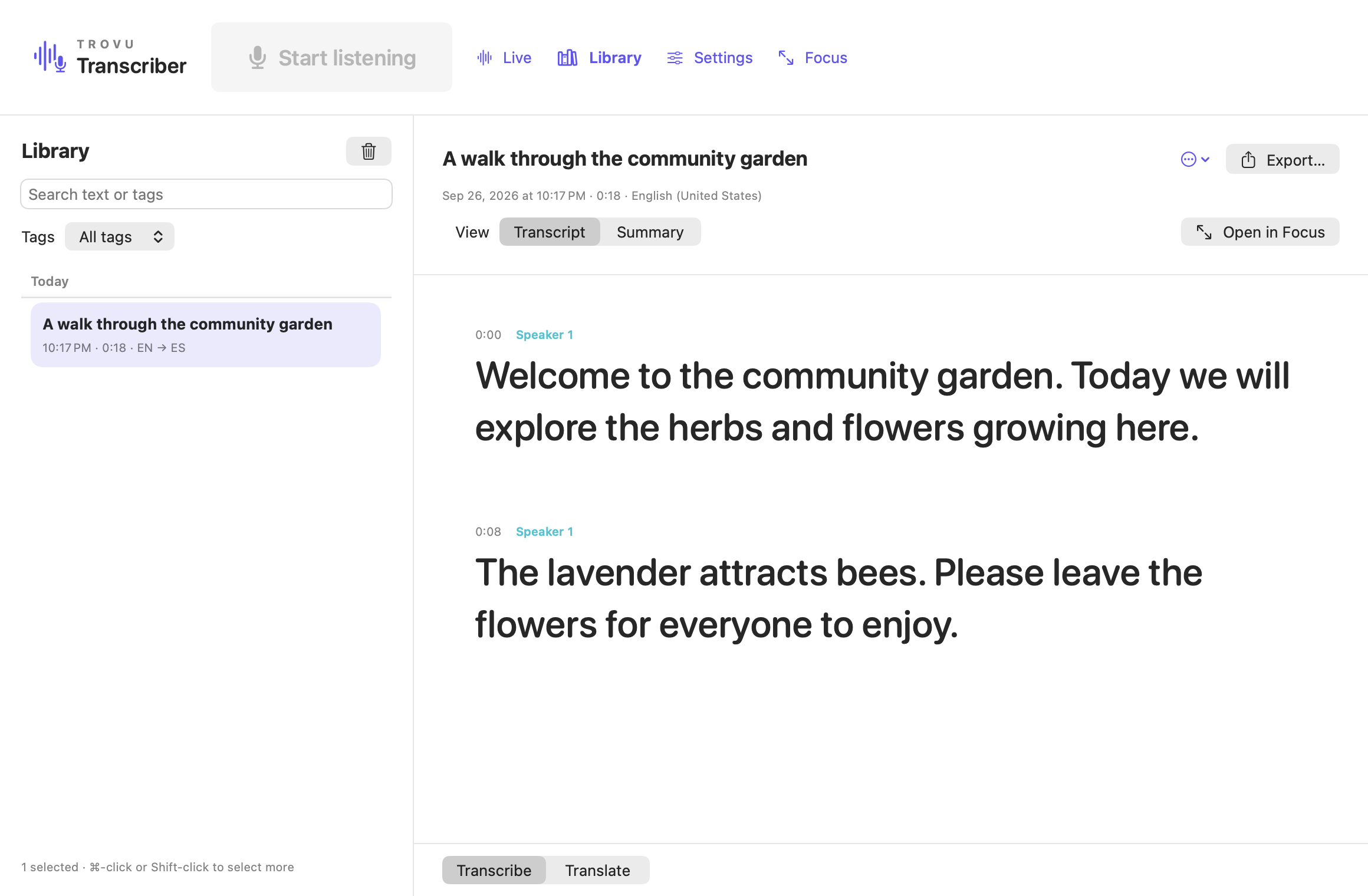
Library shows saved sessions grouped by date. Search original text, saved translations or tags. A matching passage appears in the list; selecting it opens the relevant text and playback position without starting audio.
Use the session menu to rename, edit reusable tags, export or remove a recording while keeping text. Open in Focus restores a saved item into the larger reading view, keeping its position and playback speed. Unsaved live work is protected before switching.
Use Command-click or Shift-click to select multiple items. The trash button or Delete key asks for confirmation. Deletion permanently removes selected saved text and recordings from this Mac. Unselected items remain.
Export text or subtitles
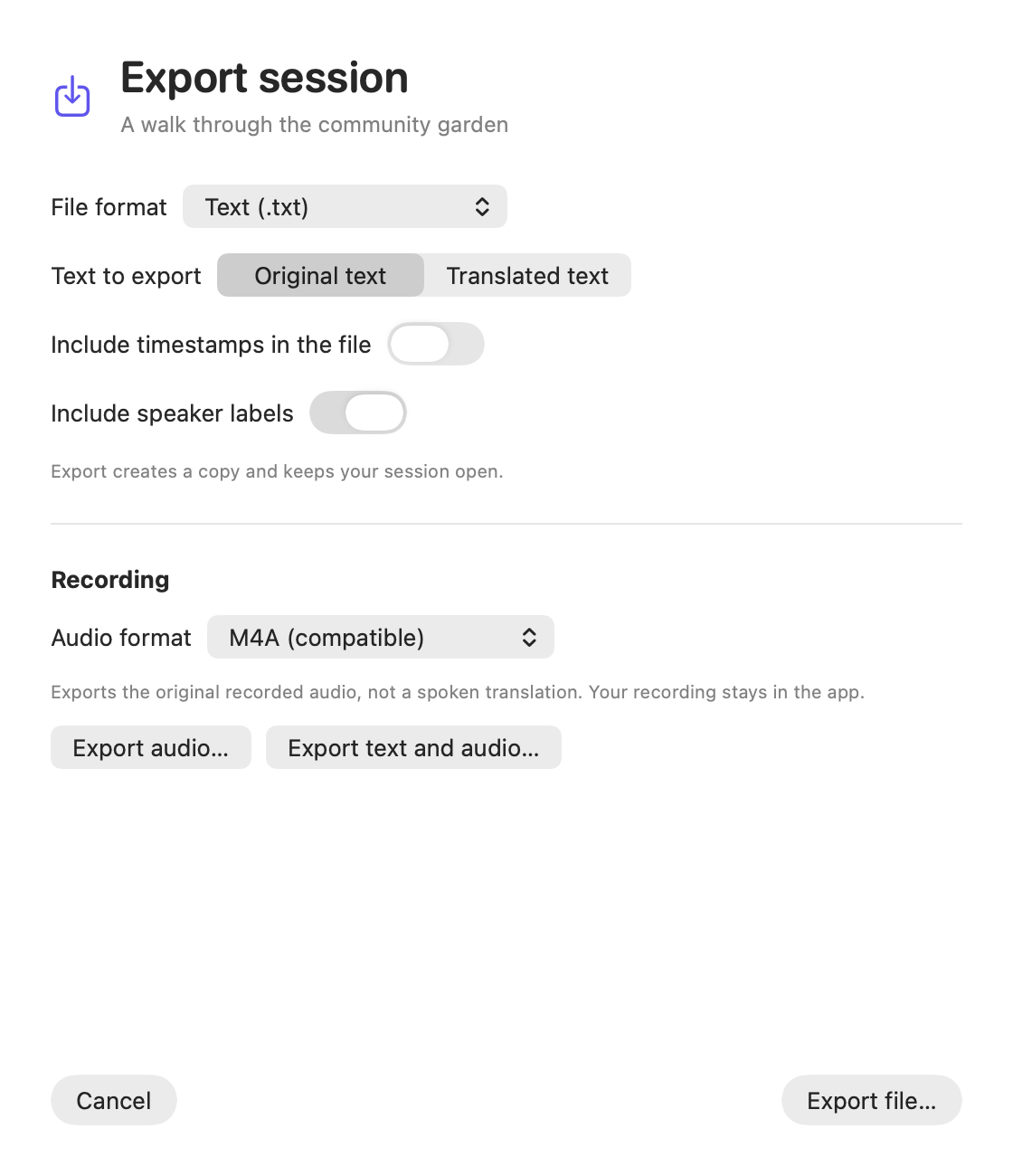
Choose Save… → Export file… for the current stopped session, or Export… in Library. Export creates a copy and does not remove the session.
- Text (.txt): original or translated text, with optional timestamps.
- SubRip subtitles (.srt): numbered captions with start/end times for compatible video editors and players. Timing is mandatory. Translated cue timing is approximate within the source passage.
- Include speaker labels: available when that session has speaker-label data, independently of today’s Settings switch.
Original subtitles use word timing when available. Long passages are split for readability. The file follows the recording’s original clock; align it with the same recording when importing into a video editor. Exports use UTF-8. Audio and tags are not included in these text files.
Export the recording
After Stop, the export dialog also offers Export audio and Export text and audio when a recording is available. Choose M4A for broad playback compatibility or original CAF to copy the recording without conversion. Audio is always the original speech, not a spoken translation. Combined export creates a new folder containing the selected TXT/SRT text and the recording, without overwriting existing folders. You can cancel while audio is being prepared; the original recording remains in the app.
If the requested translation is incomplete, finish translating or export the original. An audio-only session has no transcript to export.
Summaries and their translations
After Stop, choose Summary in the toolbar or Library. It opens inside the main window. Back to transcript returns to the current session.
Apple’s on-device model summarizes the original transcription. Selecting another summary language translates that summary using Apple Translation. The original appears on the left and the translation on the right. Copy and Export use the selected language.
Summaries are generated on request, not automatically while recording. Apple Intelligence must be enabled and its model ready. Summary language support differs from speech/translation support. Generated summaries can contain mistakes; check them against the original.
Changes to the transcript mark an existing summary outdated. Regenerating it clears old summary translations. Saved sessions keep summaries locally; temporary sessions need saving to retain theirs.
Automatic spelling-only correction
Enable Correct spelling after Stop in Settings to send stopped transcription text to Apple’s on-device model for spelling correction. It is optional and off by default. There is no separate review screen.
The app accepts single-word spelling replacements, not sentence rewrites, grammar cleanup or removal of repeated words. The model may miss errors or make an incorrect replacement. User-supplied custom words help preserve names and jargon.
The original wording is retained. Use Restore original spelling in the transcript’s context menu or Library session menu to undo corrections. Affected translations must be refreshed and existing summaries become outdated. Starting another session cancels pending correction work.
Siri and keyboard shortcuts
Try “Start transcription in Trovu Transcriber” or “Stop transcription in Trovu Transcriber” with Siri enabled on your Mac. Actions open the app and use its normal permission and retention rules. Siri’s own privacy/network behavior is controlled by macOS.
Shortcuts actions also start text translation, set speaker labels for the next session, save the current stopped transcription, summarize the latest saved session, return its original text or return a text file. Connect those outputs to Copy to Clipboard, Notes or Save File yourself; Trovu does not automatically send transcripts to other apps.
| Shortcut | Action |
|---|---|
| ⌘⇧R | Start/stop listening |
| ⌘, | Settings |
| ⌘O | Library |
| ⌘S | Save/export the current transcript |
| ⌘? | Help |
| ⌘F in Help | Search this guide |
Invoking Siri can affect microphone availability. Trovu does not guarantee that spoken Siri requests are excluded from a recording.
Trial and full unlock
The App Store version offers a free 14-day trial and a one-time Full Unlock. The trial does not automatically charge or become a subscription. The purchase screen shows Apple’s current localized price.
Use Restore purchases with the Apple Account that obtained the trial or unlock. Restoring does not restart the trial. Pending, cancelled, failed or refunded purchases do not grant a paid unlock.
After access expires, existing saved text/audio, playback, Library management and export remain available. Starting new processing requires an active trial or unlock. A session already recording can finish and save.
Troubleshooting
No text appears
Check the input meter and selected microphone. In macOS System Settings → Privacy & Security → Microphone, allow Trovu Transcriber. Move the microphone closer to the speaker and reduce competing sound. Select the language actually being spoken.
Recognition mistakes or short rows
Add technical terms and names under Custom words before the next session. Optional spelling correction works after Stop. Uncertain speaker changes can split passages; turn speaker identification off for a future single-speaker session if it is not useful.
Translation or summary unavailable
Prepare the selected language pair while online. Summary/spelling features also require Apple Intelligence and a supported language. No cloud fallback is used. Keep the original transcript when a feature is unavailable.
Recording cannot play
Audio must have been cached or retained. Text-only sessions cannot recreate their original audio. Live rewind requires temporary caching and headphones. Removing a saved recording keeps its text but removes that saved audio file.
Saving or recovery reports a problem
Keep the session open. Free disk space or export to another writable location, then retry. Do not discard the session until the data you need has been saved. After a crash, inspect interrupted sessions before deleting any recovery files.
Need more help?
Contact [email protected] with your macOS version and a description of the issue. Do not send private recordings or transcripts unless you intentionally choose to share them.